Wednesday, 29 July 2015

Remove ADFS federation and revert to Same Sign On with password sync after ADFS failure

Although AD FS can offer a much better user experience with Single Sign On to applications such as Office 365, it does have it's faults. For example if you have ADFS deployed and configured to provide SSO to Office 365, users are only able to authenticate to the Office 365 tenancy if the ADFS service is online. Therefore no ADFS, no Office 365, which means no Exchange, SharePoint etc. If your ADFS service goes offline and you still require access to Office 365 (which you likely are) the following procedure can be carried out to switch the Office 365 tenancy back to a "managed domain" which basically means it no longer relies on ADFS.
The DirSync configuration you choose here is important, it is recommended to enable Password Sync, this is so that users can login with their same username and password if you have to break the ADFS relationship. This is known as Same Sign On.

Lets first check the status of our ADFS and Office 365, so connect to it using PowerShell.

Use the Get-MsolDomain command to view if Federation is currently in operation. As you will notice it is for this environment. 

To simulate my ADFS service going offline I have down powered both the ADFS and WAP server, as you can see from VMware Workstation. 

Now if I try to login to Office 365 from a domain-joined computer using SSO it fails.


This is where it gets a little complicated, there are a number of commands on the internet that are supposed to do this, convert from a federated domain to standard. As you can see if you run the command Convert-MsolDomainToStandard -DomainName edin-networks.com -SkilpUserConversion $False -PasswordFile C:\Passwords.txt when ADFS is offline you will recieve the following error.

The work around here is to install and configure ADFS on any other server in the domain, in this example I have thrown the ADFS role onto a domain controller.

Run through the configuration wizard so that it mirrors the original ADFS setup, but don't forget this wont have the Relay Trust associated with Office 365. 


Once it is done use the following command;
Set-MsolDomainAuthentication –DomainName edin-networks.com –Authentication Managed


This command will convert the federated domain to an Office 365 manage domain, and if you have Password Sync configured with DirSync users should be able to login using their normal network passwords.
Run this command to verify that the conversion has carried out successfully.
Get-MsolDomain


Now lets test, as you can see my ADFS infrastructure is still offline, now browse to the Office 365 login page. It no longer directs me to the ADFS service name and I am free to enter my credentials.


The credentials that are valid will only the from the last DirSync, so if you DirSync has not worked for a while you may find some users have to use old network passwords. It is worth ensuring DirSync is managed and available as this procedure can be a good saving if your ADFS infrastructure fails. 

Office 365 access, ADFS failure, ADFS down, Office 365 authentication

ADFS Name Resolution Issue: Single Sign On Users are faced with the Sign In Page

This post is to document a known behaviour of ADFS 3.0 if your name resolution (DNS) is not configured correctly. If you attempt to sign in to Office 365 from a domain-joined Windows 8.1 computer (with all the SSO pre-reqs) you are faced with the following screen. The user is able to login correctly with their password, but this is not the desired experience.

It all pointed to name resolution and as this way my lab it did not surprise me (as it is a mess), so I first tested reverse lookups and as you can see it failed. 

The reverse lookup failed because there was not a PTR record created for my Domain Controller under my Reverse Lookup Zones, so I created it. The nslookup test then worked correctly.

As my Office 365 tenancy was using my lab domain edin-networks.com all of my DirSync'd users had their UPN suffixes set to @edin-networks.com. I had however forgotten to create the Forward Lookup Zone for this domain name. I created this under DNS and ensured it was integrated with Active Directory.

The next step was to create an (A) record that pointed to the ADFS service name (in this example sso.edin-networks.com) this should be set to point to your internal ADFS server. This is of course not valid for internet name resolution as you would resolve to the external IP of the WAP server.

Now attempt to ping the internal ADFS service, depending on your DNS configuration you may have to flush the cache first or you run the risk of this resolving to the external sso.domain.com

Attempt to login again and it works first time.

Tuesday, 28 July 2015

Configuring the Relying Party Trust between Office 365 and ADFS 3.0

If you currently have an ADFS infrastructure built the next step is to configure the relationship between Office 365 and your ADFS infrastructure. This is done with the following PowerShell commands.

PowerShell Remoting should be enabled and allowed on both the ADFS and WAP servers.
Enable-PSRemoting

You then must connect to the Office 365 tenancy, using this command. It is best to enter Global Administrator credentials that use the .onmicrosoft.com suffix. Refer to this blog post to see why;


Connect-MsolService

This then points to the ADFS server context, this should be the FQDN of the ADFS server if you are using a single server setup. If not it should be set to the server farm name, in which the appropriate DNS records should be configured.

Set-MsolADFSContext -Computer adfs.ryanbetts.co.uk

This command actually converts the Office 365 tenancy to use the ADFS for authentication.
Convert-MsolDomainToFederated -DomainName edin-networks.com

You can test that the settings have been applied correctly using this command.

Get-MsolDomain


You can also see that there is a Microsoft Office 365 Identity Platform under the Relying Party Trusts under your ADFS servers.


Convert-MsolDomainToFederated - ADFS "You cannot convert the specified domain to use identity federation because the account you are currently signed in with is a member of the domain. Please sign in to the service using an account that is a member of the company administrators

When you try to convert your Office 365 domain to federated in order to use SSO with ADFS you recieve the following;

"You cannot convert the specified domain to use identity federation because the account you are currently signed in with is a member of the domain. Please sign in to the service using an account that is a member of the company administrators."


This threw me at first but it was because I had authenticated to Office 365 using a Global Administrator account that was configured with my public domain suffix (edin-networks.com) in this example. The fix was to create a new Global Administrator user that was set to use the .onmicrosoft domain suffix.


Ensure the Global Administrator role is assigned to the user account.

Create your PowerShell connection and the Convert-MsolDomainToFederated command should work correctly.


Friday, 17 July 2015

Configuring AD FS Client Settings using GPO's

Updated - 24 August 2016

Requirements for SSO to Office 365 on a Windows 7 Enterprise PC;
·         Microsoft Online Service Sign-In Assistant (installed on PC)
·         The SSO service URL added to the Intranet Zone in IE
The Microsoft Online Service Sign-In Assistant can be downloaded from the following link;
It comes pre-packaged as an MSI so you can push it out through Group Policy, if you do not have a more modern software deployment mechanism such as SCCM etc. This installer basically adds a new service called Microsoft Sign-In Assistant to the PC, this service must be running for SSO to work correctly.

To configure the Intranet Zone either create a new GPO, or add the following settings to an existing GPO. 

Click on WMI Filters, right click and create a new WMI Filter.  Give it a descriptive name, in mine I have used "Windows 7 Filter".
The following query strings will ensure that only Windows 7 endpoints are given the GPO settings.
select * from Win32_OperatingSystem WHERE Version like "6.1%" AND ProductType="1" AND NOT OSArchitecture = "64-bit"

select * from Win32_OperatingSystem WHERE Version like "6.1%" AND ProductType="1" AND OSArchitecture = "64-bit"


Click on the AD FS Client Settings GPO, and from the WMI Filtering drop down, click on the new WMI filter you just created to ensure it is bound to the GPO.

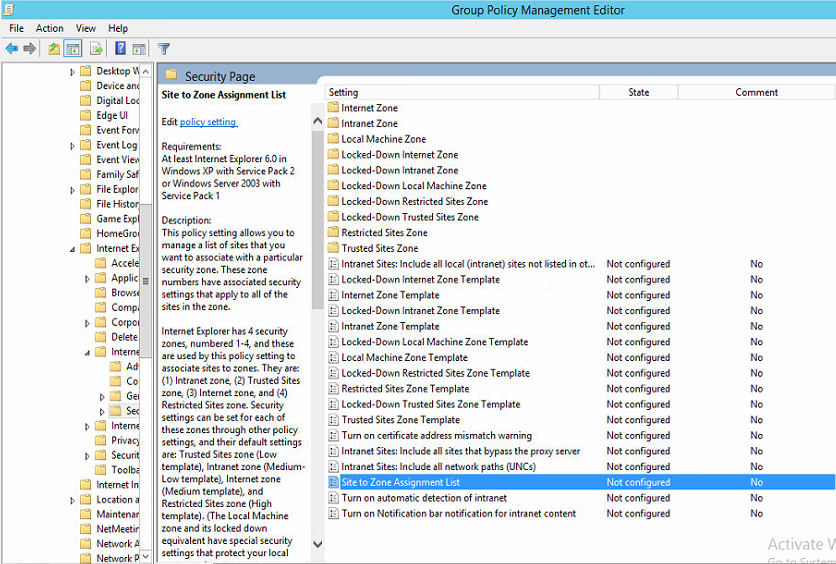
It is probably best to scope this setting to the Computer instead of the User account, edit the GPO and expand Computer Configuration/Policies/Administrative Templates/Windows Components/Internet Explorer/Intern Control Panel/Security Page and double click the Site to Zone Assignment List.

Click Enabled and then Show...

In the Value Name string enter the AD FS service URL, and the value of 1. The value basically corresponds to the zone that this policy applies to.
1 = Intranet/Local Zone
2 = Trusted Sites
3 = Internet/Public Zone
4 = Restricted Sites

Review the settings from the Settings tab, now scope the GPO to the correct Domain/OU.

Tuesday, 14 July 2015

Microsoft Surface Pro 3 Boot from USB Not Working

Easy blog post which may not help many IT Professional but if your a consumer this post hopefully helped you. 

I recently got a Microsoft Surface Pro 3 hybrid device for using at work, it's a nice device that is lightweight and powerful so perfect if you travel a lot like me.

As I passionately hate the OEM builds of Windows you get on next devices the first thing I wanted to do was to rebuild it myself with a clean Windows 8.1 Enterprise image.

Obviously the Surface 3 does not have an optical drive so the only options are to boot from USB, PXE or attach an external DVD drive. I do not have an MDT/PXE server setup and handy so USB was my only option.

The official manual says to boot a Surface Pro 3 you do;
  • Turn Off Device Completely
  • Press/Hold Volume Down Button
  • Turn Device On
  • Release Volume Button when Surface Splash Screen Appears
This for whatever reason did not work for me so I started looking around on forums, and someone had mentioned if you rename your USB drive with Windows on to "BOOTME" it forces the Surface to boot from it. Never worked for me.

The only way in which I could get a new operating system installed was to run the Windows 8.1 setup from the old installation.


If you do it this way (which from what I can remember never worked in older versions of Windows) the setup automatically reformats the SSD disk and reinstalls everything for you.

I found that after the first reboot the Surface hangs at the Surface splash screen, the fix is to hard reset it while leaving the USB drive inserted.

Thursday, 9 July 2015

NetApp Clustered ONTAP 8.x Cluster/High Availability "Node NetAppNode has some LIF's that are not in their home node" Orphaned LIF Interface

I was recently checking over the configuration of a NetApp FAS 2252 to ensure it was installed correctly before it gets handed over to a customer. In doing this I checked the High Availability section under Cluster and then the NetApp Cluster name.
There was a yellow warning box above the NetApp HA diagram that stated "Node NetAppNode has some LIF's that are not in their home node", although I was confident this would not affect the failover itself I wanted to get rid of the error. 
Connectivity to SVMs is provided through logical interfaces (LIFs). A LIF has an IP address or World Wide Port Name used by a client or host to connect to an SVM. A LIF is hosted on a physical port. An SVM can have LIFs on any cluster node. Clients and hosts can access data regardless of the physical location of the data in the cluster. The cluster will use it’s interconnect to route traffic to the appropriate location regardless of where the request arrives. LIFs virtualize IP addresses or WWPNs, rather than permanently mapping IP addresses and WWPNs to NIC and HBA ports. Each SVM requires its own dedicated set of LIFs.


Open up an SSH session to the SVM mgmt IP, and use the following command;
network interface show

This will display all of the LIF interfaces assigned to the SVM's on your NetApp, I only have one SVM and as you can see it has three LIF interfaces. If you look above the SVM line (circled in purple) you will see one of the LIF interfaces is orphaned. This is what was causing the error.

The following command can be used to re-home the orphaned LIF interface.
network interface revert -vserver vservername -lif lifname


If you return to the GUI interface you will notice is warning has disappeared.

Wednesday, 8 July 2015

Completed my CCNP Data Center!

I originally done CCNA Routing and Switching about 4~ years ago when I was working for a Cisco Premium Partner. After that I did CCNA Security as I was doing loads of work with Cisco ASA firewalls, so it made sense. Then when I moved into a more infrastructure-focused role the importance of doing Cisco certifications lessened, so I stopped at CCNA-level, then as you know with certifications if you don't renew them you loose them.

With that my original CCNA certifications expired in around May 2014, at the point in time I was heading to Bermuda to work with CCS Group (http://www.ccs.bm/). Part of my original immigration to go to Bermuda had a requirement for me to be Cisco CCNA certified (did not matter which track). At this point all of my other certifications were up to date and good to go except my CCNA, so I had to get back on the Cisco band wagon.

CCS Group in Bermuda are/were a Cisco partner, so Cisco UCS and Nexus Switching was something that was being sold and implemented for customers on a regular basis, so with that in mind it made sense to go for the CCNA Data Center.

Last July I completed both the exams required to achieve the CCNA Data Center certification, and Bermudian immigration were happy. It was also my intention to go to CCNP-level as I have went to "professional" level with most other vendor certifications. 

After 11 months of studying (on/off around other certs that were more "important" for the job at hand) I completed the last CCNP DC exam this morning to earn me a CCNP Data Center.


To study I used mostly Cisco documentation and for the later part of this year the newly released video material from INE and CBT Nuggets. The INE content is first class, and covers everything you need to know if you were to implement UCS/Nexus in real life, I found (after I failed 642-996) that it was lacking some of the "exam specific" content (but to be fair which training course isn't)?

In addition to this the following books were worth reading; 

This Cisco Press UCS book is good, but very outdated being released in 2010. It still covers the architecture of Cisco UCS very well, you should either ignore the hardware specific details or map the old hardware that is referenced in this book, to what is now the modern day equivalent. 


http://www.amazon.co.uk/Cisco-Unified-Computing-System-Center/dp/1587141930/ref=sr_1_1?ie=UTF8&qid=1436380708&sr=8-1&keywords=cisco+ucs

Great book, that you need to pass this certification. Simples.


http://www.amazon.co.uk/Data-Center-Virtualization-Fundamentals-Understanding/dp/1587143240/ref=sr_1_2?ie=UTF8&qid=1436380708&sr=8-2&keywords=cisco+ucs

There are also a number of good reference architectures and design guides out on the internet from multiple vendors such as Cisco, NetApp and VMware that really pull together all the dry theory into real world examples.

You will also need the Cisco UCS Emulator, unless you have a couple of hundred grands worth of equipment laying around to practice on.


Monday, 22 June 2015

The server vc01.company.com could not interpret the client's request. (The remote server returned an error: (503) Server Unavailable. Call "Service.RetrieveContent" for object "ServiceInstance" on Server "dreamline".

When you try to login to the VMware vSphere 6.0 vCenter using the C# client you recieve the following error "The server vc01.company.com could not interpret the client's request. (The remote server returned an error: (503) Server Unavailable. Call "Service.RetrieveContent" for object "ServiceInstance" on Server "dreamline".", the Web Client is also not responding.

To fix, firstly reboot the vCenter server. Either RDP to it, or login to the ESXi host that is hosting the VM and restart the guest gracefully.

Let the vCenter come back online and ensure you have left enough time for all of the services to start if you are using vCenter on a Windows Server. Once noticable improvement in vSphere 6 is the speed all of the servers come online.

Secondly, SSH to the problem ESXi hosts and issue the following command;

/sbin/services.sh restart  

You should then be able to login to vCenter.

Sunday, 21 June 2015

Configuring Citrix NetScaler to Load Balance ADFS v3.0

Configuring Citrix NetScaler to Load Balance ADFS v3.0

The link below is broken, I also do not have a copy of the full document I created in July 2015. Do not e-mail me directly asking for a copy.

To ensure ADFS and the WAP servers are highly available a hardware load balance is recommended. In this example I have outlined how to configure Citrix NetScalers to do this. If you are deploying ADFS for Office 365, it is important that the service is highly available otherwise users will not be able to authenticate to ADFS. 

Microsoft supports NetScaler as a hardware load balance but there is lack of documentation around how to deploy the two solutions together.

Some of the configuration settings such as MAC based forwarding, SSL bridging, session persistence and Client IP header are some of the settings that are not obviously required.

Although the full guide I created no longer exists, I have summarised how to configure the NetScaler to load balance ADFS 3.0 below. This is not a full and conclusive guide. I won't be re-doing the guide until I am asked to do it for a customer. 

Although this diagram is for MS Lync, it's similar for ADFS. Imagine you have 2 x WAP in the DMZ and 2 x ADFS in your LAN. 


Most places won't have two separate physical NetScaler pairs. The above topology can be achieved using a single pair of Netscalers, with network interfaces on each of the DMZ/LAN networks. Netscaler vServers can then be used to load balance each component. If your security requirements state you must have a physical break then it's different.

High level steps (from memory)

  • Base configure the Netscalers (NSIP, SIP, routes, default gateways etc)
    • at this point it's important to have an interface on each network. If you are deploying the ADFS WAP servers, these should be in your DMZ. Therefore an interface from the NS is required on each of the separate Layer 2 networks. 
      • if you have problems research "Mac based forwarding"
  • Configure high availability of the Netscalers
    • Easy to do, Google it. I normally set my HA configuration to Active/Passive.
  • Define the server's both ADFS and WAP
    • Traffic Management/Load Balancing/Server
      • Create a new server object for each of the ADFS/WAP's. Set the protocol to SSL Bridge
      • Create a new service one for the WAP's and one for the ADFS's. Traffic Management/Load Balancing/Services
        • service 1 = "adfs_https" protocol SSL Bridge
        • service 2 = "wap_https" protocol SSL Bridge
  • It's important the protocol type matches on the servers/services.
At this point, if you servers are listening on TCP 443 (https) and you have configured the networking correctly the server/services will show as "up" and the light will be green. If not there is some kind of networking problem (remember your WAP servers don't listen on 443 until you have them successfully paired with the ADFS servers)

  • You should configure SSL session persistence (I cant remember the exactly menu, you either do this in the service configuration or on the vServer, check eDocs)
  • Now create a new vServer for each the WAP's and the ADFS's
    • vserver1 = "adfs" give the vserver an IP on the network the backend servers sit on
    • vserver2 = "wap" same as above
  • When you create the vserver, bind them to the corresponding service (adfs - adfs etc), and set the load balancing method to round robin.
DNS 

Now you have the NS configured, on the WAP servers create a hosts file entry to point your ADFS service name i.e sso.domain.com to the NS vServer for the ADFS servers. Try to run the WAP-ADFS pairing. If you get an error check out the bindings.


Friday, 19 June 2015

Resetting an F5 Networks Big-IP System's Root Password from the Console

I was recently asked to configure a pair of F5 Big-IP's for a customer, the Big-IP system is something I have only limited exposure to but as I know Citrix NetScaler (which is also an ADC) I thought the concepts would be pretty similar, which they are!

I did a configuration using the Big-IP virtual appliance in ESXi so that I could test the functionality using emulated networks etc. So the plan was to export the config and then replace the config on the new box, thus saving time going through all the steps again. I made a stupid mistake in that I tried to restore the config (which had services such as SNAT enabled) to a device with nothing other than the base license. So in short when the device rebooted it hung at this stage.


I opened a console session which is where I realized my problem.


My next plan was to factory restore the device and start again. After I pasted on the config something weird happened with the logins, both the administrators and the root passwords would not work, either from the new config or the old one.

Quick job turns into an episode, so I had to reset the root password to factory reset the device. To do this open a console session (I had to set my BAUD rate to 19200 for it to work) and then hard reset the device. Break the boot sequence and highlight your operating system image and press E.

Resetting an F5 Networks Big-IP System's Root Password from the Console


From the sub menu highlight the line that start kernel /boot/l/vmlinuz and press E again.


Type the word single onto the end of the string on the page, and hit enter, this will take you back to the main page.


Press Esc to get back to the main boot screen and hit enter while you are on the operating system image, this will boot the F5 into single user mode in which you can reset the password.


You will be prompted from logname: no login name.


Type passwd to launch the password reset script, set the password and then type reboot to cycle the device. When it comes back up you should be able to get in with your root account and the new password.


Monday, 8 June 2015

Active Directory Federation Services (AD FS) Web Application Proxy "The operation stopped due to an unknown general error. Error Code 0x8007520C" and "Unable to retrieve proxy configuration data from the Federation Service."

The AD FS WAP throws the error "The operation stopped due to an unknown general error. Error Code 0x8007520C" and it is reporting Critical Errors under the Operation Status. The AD FS infrastructure is out of action when this is in this state.

From the Event Logs there are multiple errors relating to the issue the first is Event 422 "Unable to retrieve proxy configuration data from the Federation Service." It also lists a Certificate Thumbprint that is nowhere to be found from the certificate stores. I would expect this to be the thumbprint of the shared SSL certificate that is also installed on the AD FS servers, but it is not.

Event 394 is also present "The federation server proxy could not renew its trust with the Federation Service. Additional Data, Exception Details: The proxy trust certificate specified by thumbprint {0} has expired."

The following command can be used to try and reset the AD FS WAP configuration. I found this from the following blog post http://www.concurrency.com/infrastructure/web-application-proxy-fails-error-code-0x8007520c/ unfortunately Shannon's fix did not work for me in this instance.
Install-WebApplicationProxy –CertificateThumbprint “thumbprint” –FederationServiceName “sso.domain.com”


It returned an error "The certificate that is specified by the CertificateThumbprint parameter could not be found in the Local Computer Personal Certificate Store", this was strange as I confirmed the certificate was present, valid and had the matching thumbprint.


The next step was to remove the Remote Access server role entirely and then reinstall and configure it. I used the following PowerShell command, I also deleted the certificate that was originally configured to work with the WAP so that I could reinstall it fresh. This can be done from the CLI or from the Certificates MMC snap-in.
Remove-WindowsFeature RemoteAccess, Web-Application-Proxy -Restart


Once the servers have rebooted, reinstall the Remote Access (WAP) server role. Ensure the certificate has been imported back in and it has the matching private key.
Install-WindowsFeature RemoteAccess, Web-Application-Proxy -Restart

When you launch the Remote Access Console you should be able to run the wizard again, once I did this the WAP server worked as expected again. It was a strange problem which I think was related to the certificate. If you have details on a fix without blowing the config away please share below.