If for whatever reason you have to have Domain Controllers separated by firewalls you will require the following ports and protocols allowed between the DC's to ensure you can A.) join the domain and B.) maintain a healthy Active Directory with replication etc.
LDAP TCP-in - 389
LDAP UDP in - 389
LDAP for Global Catalog TCP in - 3268
NetBIOS name Resolution UDP in - 138
SAM/LSA TCP in - 445
SAM/LSA UDP in - 445
Secure LDAP TCP in - 636
Secure LDAP for Global Catalog TCP in - 3269
W32Time NTP UDP in - 123
RPC - RPC Dynamic
RPC Endpoint Mapper
DNS - TCP and UDP 53
Kerberos V5 UDP in - 88
Netbios Datagram UDP in - 137
There are multiple ways to have Active Directory extended to none-trusted networks. Since Windows Server 2008 R2 the option to have a Read Only Domain Controller (RODC) in an un-trusted network has proved attractive to business. This ensure that if the un-trusted network is compromised, the RODC only holds a replicated copy of the Active Directory database. Even if the RODC was taken offline and attacked, no "write back" to Active Directory is possible so the impact is minimal.
Depending on your requirements options such as Active Directory Federation Services (AD FS), DirSync, FIM 2010 R2 and Microsoft Identity Manager 2015 (MIM) can all be good solutions for identity and access management in an Active Directory environment.
Showing posts with label AD FS. Show all posts
Showing posts with label AD FS. Show all posts
Wednesday, 30 September 2015
Thursday, 24 September 2015
AD FS 3.0 Configuring SSO for Multiple Domains/UPN Suffixes
Active Directory Federation Services 3.0 supports SSO for multiple domains by default. In previous versions of AD FS (2.0, and 2.1) a number of updates were required in order for it to support this. At one stage, if an organization required AD FS SSO for multiple domains they had to deploy multiple AD FS infrastructures to support this.
If you are using Office 365 and currently have multiple UPN Suffixes in your organization, the way in which you convert your domain to a "federated" domain is slightly different than the way you would configure it with a single domain.
At a high level you must have the following configured to ensure you can use SSO with multiple domain names;
⦁ Additional UPN Suffixes defined under Active Directory Domains and Trusts
⦁ Additional Domains configured within Office 365
In my environment my primary domain is domain.com this is the FQDN my Active Directory domain uses. I am going to configure my ADFS/Office 365 to support SSO for domain1.com and domain2.com.



If you are using Office 365 and currently have multiple UPN Suffixes in your organization, the way in which you convert your domain to a "federated" domain is slightly different than the way you would configure it with a single domain.
At a high level you must have the following configured to ensure you can use SSO with multiple domain names;
⦁ Additional UPN Suffixes defined under Active Directory Domains and Trusts
⦁ Additional Domains configured within Office 365
In my environment my primary domain is domain.com this is the FQDN my Active Directory domain uses. I am going to configure my ADFS/Office 365 to support SSO for domain1.com and domain2.com.

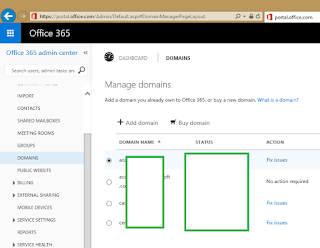
You can add additional domains in Office 365 from the Dashboard then Add Domain.

Once additional UPN's are added to a domain, you can use a user accounts property box under the Account tab, which UPN suffix is the default for that account.

The following commands are required if you have
already converted your primary domain to a federated domain and SSO is
working for the primary domain only. What this does is, revert the primary
domain to a non-federated domain which removes the Office 365 Relay Trust from
the AD FS infrastructure. The commands then create the Relay Trust and convert
the primary domain back to being federated. The -SupportMultipleDomain is
the important switch here.
|
Connect-MsolService
Set-MsolAdfsContext -Computer "adfs.domain.com"
Convert-MsolDomainToStandard -DomainName "adfs.domain.com"
-SkipUserConversion $True
Set-MsolAdfsContext -Computer "adfs.domain.com"
Convert-MsolDomainToFederated -Domain "domain.com"
-SupportMultipleDomain
Convert-MsolDomainToFederated -Domain "domain1.com"
-SupportMultipleDomain
Convert-MsolDomainToFederated -Domain "domain2.com"
-SupportMultipleDomain
Update-MsolFederatedDomain -Domain "domain1.com"
-SupportMultipleDomain
Update-MsolFederatedDomain -Domain "domain2.com"
-SupportMultipleDomain
|
If you have not yet configured your domain to be
federated, you can skip the step Convert-MsolDomainToStandard.
You can check if everything has worked correctly
by using the following command;
Get-MsolDomain
All of your domains should now be set to Federated.


Friday, 17 July 2015
Configuring AD FS Client Settings using GPO's
Updated - 24 August 2016
Requirements for SSO to Office 365 on a Windows 7 Enterprise PC;
Requirements for SSO to Office 365 on a Windows 7 Enterprise PC;
·
Microsoft Online Service Sign-In Assistant
(installed on PC)
·
The SSO service URL added to the Intranet Zone in
IE
The Microsoft Online
Service Sign-In Assistant can be downloaded from the following link;
It comes
pre-packaged as an MSI so you can push it out through Group Policy, if you do
not have a more modern software deployment mechanism such as SCCM etc. This
installer basically adds a new service called Microsoft Sign-In Assistant to
the PC, this service must be running for SSO to work correctly.
To configure the Intranet Zone either create a new GPO, or add the following settings to an
existing GPO.

Click on WMI
Filters, right click and create a new WMI Filter. Give it a descriptive name, in mine I have
used "Windows 7 Filter".
The following query
strings will ensure that only Windows 7 endpoints are given the GPO settings.
select * from
Win32_OperatingSystem WHERE Version like "6.1%" AND
ProductType="1" AND NOT OSArchitecture = "64-bit"
|
select * from
Win32_OperatingSystem WHERE Version like "6.1%" AND
ProductType="1" AND OSArchitecture = "64-bit"
|

Click on the AD FS
Client Settings GPO, and from the WMI Filtering drop down, click on the new WMI
filter you just created to ensure it is bound to the GPO.

It is probably best
to scope this setting to the Computer instead of the User account, edit the GPO
and expand Computer Configuration/Policies/Administrative Templates/Windows
Components/Internet Explorer/Intern Control Panel/Security Page and double
click the Site to Zone Assignment List.
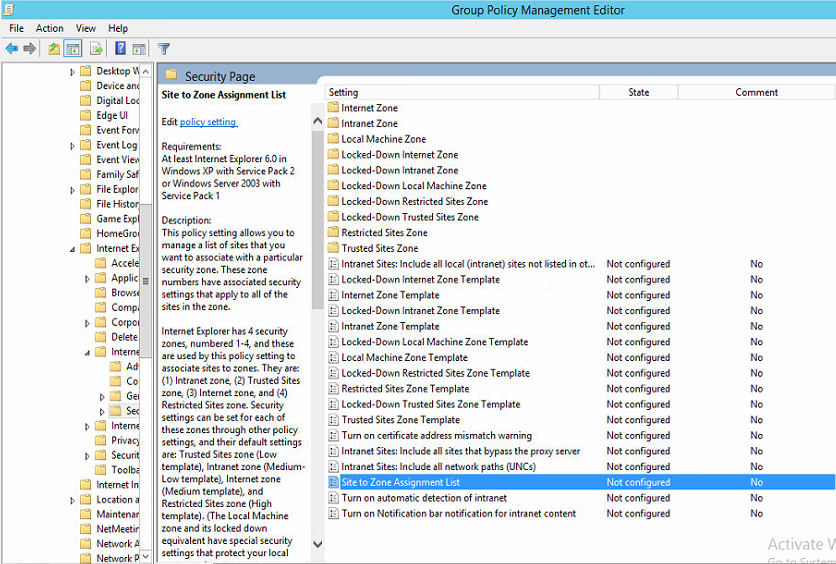
Click Enabled and
then Show...

In the Value Name
string enter the AD FS service URL, and the value of 1. The value basically
corresponds to the zone that this policy applies to.
1 = Intranet/Local
Zone
2 = Trusted Sites
3 = Internet/Public
Zone
4 = Restricted Sites


Monday, 8 June 2015
Active Directory Federation Services (AD FS) Web Application Proxy "The operation stopped due to an unknown general error. Error Code 0x8007520C" and "Unable to retrieve proxy configuration data from the Federation Service."
The AD FS WAP throws the error "The
operation stopped due to an unknown general error. Error Code 0x8007520C" and
it is reporting Critical Errors under the Operation Status. The AD FS
infrastructure is out of action when this is in this state.

From the Event Logs there
are multiple errors relating to the issue the first is Event 422 "Unable
to retrieve proxy configuration data from the Federation Service." It
also lists a Certificate Thumbprint that is nowhere to be found from the
certificate stores. I would expect this to be the thumbprint of the shared SSL
certificate that is also installed on the AD FS servers, but it is not.

Event 394 is also present "The federation
server proxy could not renew its trust with the Federation Service. Additional
Data, Exception Details: The proxy trust certificate specified by thumbprint
{0} has expired."

The following command can be used to try and
reset the AD FS WAP configuration. I found this from the following blog post http://www.concurrency.com/infrastructure/web-application-proxy-fails-error-code-0x8007520c/ unfortunately Shannon's fix
did not work for me in this instance.
Install-WebApplicationProxy
–CertificateThumbprint “thumbprint” –FederationServiceName “sso.domain.com”
|


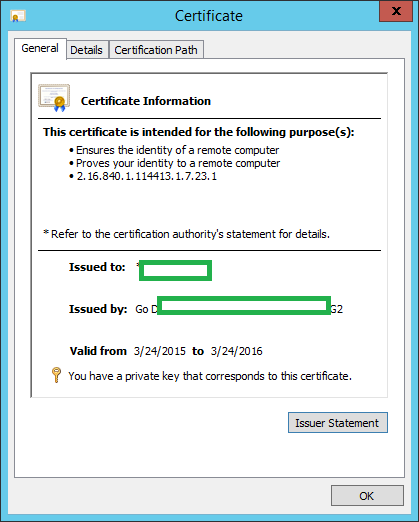
It returned an error "The certificate that
is specified by the CertificateThumbprint parameter could not be found in the
Local Computer Personal Certificate Store", this was strange as I
confirmed the certificate was present, valid and had the matching thumbprint.


The next step was to remove
the Remote Access server role entirely and then reinstall and configure it. I
used the following PowerShell command, I also deleted the certificate that was
originally configured to work with the WAP so that I could reinstall it fresh.
This can be done from the CLI or from the Certificates MMC snap-in.
Remove-WindowsFeature
RemoteAccess, Web-Application-Proxy -Restart
|

Once the servers have
rebooted, reinstall the Remote Access (WAP) server role. Ensure the certificate
has been imported back in and it has the matching private key.
Install-WindowsFeature
RemoteAccess, Web-Application-Proxy -Restart
|
When you launch the
Remote Access Console you should be able to run the wizard again, once I did
this the WAP server worked as expected again. It was a strange problem which I
think was related to the certificate. If you have details on a fix without
blowing the config away please share below.

Friday, 6 March 2015
Office 365 Installing and Configuring Active Directory Federation Services (AD FS) with a Trusted SSL Certificate
This post is a follow on from my last two blog posts on configuring Office 365, DirSync and AD FS for unified identities from your on-site Active Directory to the Office 365 cloud.
If you review this TechNet article (https://technet.microsoft.com/en-us/library/cc730660.aspx) you will see that AD FS requires a globally trusted SSL certificate if you are going to federate to Office 365 for Single Sign On (SSO). Although it would be possible to use your internal Certificate Authority if your CRL's were published externally it is recommended to use an SSL certificate issued from a global provider. As this is only a test lab I got a cheap SSL certificate from GoDaddy for £5.
Getting the certificate successfully installed so that AD FS can use it can be confusing at first, when GoDaddy issue certificates they come in the .CER format, which when imported into the AD FS server do not show up when you run the AD FS configuration wizard.
I found the easiest way to get round this is to download the DigiCert utility from here https://www.digicert.com/util/, once it's installed open the GUI. Click on the SSL icon from the left hand side and then click Import.

Once you have downloaded your SSL certificate from your certificate provider browse to the location of the file and click Next.

Enter a friendly name for the certificate, I have just used the single Common Name in this instance. Click Finish.

The certificate will then be listed in the DigiCert utility, click on the certificate once and then click Export Certificate.

Choose Yes Export the Private Key and ensure the format is set to PFX and include all related certificates, click Next.

You will be prompted for a password to protect the certificates private key, click Next.

Point to a path to output the new certificate file. Click Finish.

Get the newly generated certificate PFX file onto the AD FS server and right click on it, and select Install PFX.

Run through the Certificate Import Wizard, ensuring you have to import it in to the Local Machines Certificate store.


You will be required to enter the password that you set during the DigiCert utility stage. Ensure you make the key exportable as you will need to export this if you are going to use the AD FS WAP. Click Next.


Now it's time to install Active Directory Federation Services, open Server Manager and click Manage then Add Roles and Features.

Click Next and select AD FS from the list of available server roles, click Next.


Once the installation has completed, return to Server Manager and click on the yellow icon and select Configure the Federation Service on this Server.

Once the wizard launched select Create the first federation server in a federation server farm and then click Next.


Now you will be prompted to select the SSL Certificate you would like AD FS to use, from the drop down the certificate you imported in the last stage should appear here, click Next.

An AD FS Service Account is required, then click Next.

In this example I am going to install AD FS with the Windows Internal Database it is possible to configure AD FS to use full SQL Server but it's only for large environments that require over 5 AD FS servers in a farm. Click Next.

Click Next, and the wizard will configure the basic AD FS settings.


Thursday, 5 February 2015
Active Directory Federation Services (AD FS) 3.0 Configuration Wizard "An error occurred while trying to configure this machine". "A certificate with the thumbprint xxxx was not found in the LocalMachine certificate store."
I was recently installing Active Directory Federation Services (AD FS) 3.0 which is shipped with Windows Server 2012 R2. I had provisioned and configured the first AD FS server which was utilizing the WID database as this was only in a test lab. I had requested a certificate from my internal CA with the Common Name fs.domain.com from the first AD FS server. It was issued and imported without problem into the Personal store on the primary AD FS server.
Once I had installed the AD FS role on the second server I was following the configuration wizard to get it added to the AD FS farm, I received the error "An error occurred while trying to configure this machine". "A certificate with the thumbprint xxxx was not found in the LocalMachine certificate store." this was because I had forgot that all of the AD FS components in a farm must use the exact same certificate.

I moved back to the primary AD FS server and launched the Certificates (Computer) MMC, from there I opened the fs.domain.com certificate from the Personal store, I checked that the thumbprint of this certificate matched the once required by the AD FS wizard on the secondary server.

The certificate must be Exported from the Primary and Imported into the Personal store on the secondary AD FS server (or any other FS servers such as ADFS Proxy/WAP's).


Rerun the AD FS configuration wizard and ensure you tick the box Overwrite Existing AD FS Configuration Database Data.

Subscribe to:
Posts (Atom)