Showing posts with label Azure AD. Show all posts

Tuesday, 16 May 2023

Deploying and Configuring Azure Active Directory Domain Services (AADDS) to Provide Legacy Authentication Protocols in Azure

Azure AD Domain Services (AADDS) is a way to provide legacy authentication protocols to your Azure Virtual Networks, without having to build AD Domain Controllers or provide any kind of reach back to your existing AD infrastructure. AADDS is a Microsoft-managed deployment of Active Directory, where the customer/tenant is not responsible for management of the underlying compute, storage and networking surrounding the service.

Azure AD Domain Services provides a one-way synchronization from Azure Active Directory to the managed domain. In addition, only certain attributes are synchronized down to the managed domain, along with groups, group memberships, and passwords. The integration is to the AAD tenant which is already present when AADDS is created from an Azure subscription.


As this is a managed service, it is expensive and tenants/customers do forfeit a number of control factors which might make using AADDS in a production context a challenge. Many organisations do end up ruling out using AADDS due to its short comings around management. That said, many are using AADDS in production to offer authentication for services such as AVD, which still requires the Session Hosts to be joined to a traditional Active Directory. As all of the objects are pulled from the AAD tenant into AADDS, it is possible to have cloud-only objects synced to AADDS, in which none of the objects which are synced from traditional AD into AAD are then further synced from AAD to AADDS. This is configurable when the AADDS instance is being created, this is highlighted below.

Information: You can only create a single managed domain serviced by Azure AD Domain Services for a single Azure AD directory. This means that each AAD tenant can only have one AADDS domain regardless of how many customers, subscriptions etc are served from that tenant. This is a potential limitation but is impossible to overcome due to the nature of the sync relationship between AAD to AADDS.

Common use cases and patterns to consider AADDS for:

  • Legacy authentication is required in a cloud-only environment, when no traditional AD DS exists.
  • No cross site connectivity between on premise and Azure is available, this makes extending the existing AD DS to Azure difficult.
  • Domain Services are required in an air gapped manner for services such as Remote Desktop Services (RDS) or Azure Virtual Desktop (AVD).

Information: Although AADDS might read as an extension of your existing directory services, please note that this is an entirely new AD DS domain. Therefore any application authentication integrations would have to be reconfigured to trust the new domain during a migration to Azure. Please do not forget that as this is a new domain, any AD controls such as groups, service accounts used to control in-application functionality or permissions would have to be recreated. It is possible to leverage Group Policy Objects (GPOs) in AADDS.

Azure Portal and search for Azure AD Domain Services (AADDS) and click Create.

On the Basic tab, we must select a Subscription for the AADDS instance. A DNS Primary Name is already required, this is the internal DNS namespace which is used to built and create the new AD DS. The infrastructure to support the AADDS must be hosted within an Azure region, I have selected UK South below. We have also selected the Enterprise SKU.


The Networking tab for AADDS is important as the AADDS service must be joined to a virtual network to ensure applications and services can use the legacy domain. In this example we create a new virtual network and subnet, please note the AADDS service will be created into a new subnet. Nothing else should be deployed into this subnet as it must be exclusively for AADDS. The AADDS will have private addresses within this subnet which are used in the DNS Server configuration to ensure servers and clients can discover the AADDS service/domain.


The Administration tab outlines what existing users and groups within the AAD are granted privileged access to the AADDS managed domain. Please note you are not granted Domain Administrator or Enterprise Administrator rights in the managed domain. You also cannot extend the schema of the Active Directory, therefore limiting the usage of custom attributes for complex application scenarios. Management of the AADDS domain is done with the users who are populated within the AAD DC Administrators group. This group starts out life in the AAD as an assigned group. You then add members to this AAD group which are then granted management permissions within the new AADDS domain.

You will notice below the check box for "All Global Administrators of the Azure AD Directory" is selected. This ensures that all Global Admins within the tenant are also given management permissions within the domain, over and above the AAD DC Administrators. 

We now configure what objects we would like to sync into the new directory. By default you can configure full sync. This is where objects which originated from on premise AD but have been synced to AAD would then be pushed into the AADDS. The architecture looks something like this, where the on prem AD syncs to AAD via AD Connect, then AADDS syncs from AAD into the managed domain. There would never be a direct link between AADDS and on prem AD.

You can of course select, Cloud-only where only objects which have originated in the AAD tenant are then synced to the AADDS instance, leaving behind anything in AAD which originated from on prem AD.

It is possible to fine tune the security settings for parameters such as TLS, NTLM, Kerberos etc. It is probably only advisable to do this if you have a compelling reason to. 

The creation of an AADDS domain takes around 45 minutes so be patient and once the service has completed deploying you will be able to integrate the infrastructure behind the service. You will notice no Virtual Machines are available as part of AADDS, these are entirely abstracted from the customer.


To ensure your new managed domain is reachable you must find which IP addresses have been assigned to the AADDS Domain Controllers underneath the platform. Go to Properties from the AADDS resource object and you will find the addresses there. These are private addresses and we will configure our virtual network to use these addresses as the DNS to ensure the domain can be resolved. 

To do this, open up a virtual network and go to DNS Servers, then click on Custom. From here enter the addresses of the AADDS service and commit the change. This will ensure all infrastructure provisioned on this network will automatically be given these DNS addresses which will ensure the new AADDS domain can be resolved. If this is in place you should be able to join a new machine to your new domain. 

To manage the domain you should use something like the RSAT tools from a management workstation with the correct credentials. From here you will be able to open the domain tree, Group Policy etc.

Tuesday, 3 September 2019

How to publish RemoteApps on Windows Virtual Desktop using Powershell

To publish RemoteApps on Windows Virtual Desktop, you must create a dedicated Host Pool for RemoteApps. It is not possible to coexist RemoteApps with full desktops. This was the same in legacy Remote Desktop Services. I have already created a new Host Pool using the Portal called “hostpool2”, please note for RemoteApps you must create the host pool with a server operating system.

Use the following command to authenticate to the WVD tenant.

Add-RdsAccount -DeploymentUrl https://rdbroker.wvd.microsoft.com

Use the following command to create a new RemoteApp Group.

New-RdsAppGroup -TenantName "Tenant Name" -HostPoolName "hostpool2" -Name "Demo"

Use the following command to display all the available applications on the host pool VM’s. This command displays 3 variables which are required for the New-RdsRemoteApp command.

1 – App Name: the name of the application
2 – Icon Path: the icon path on the local system to be displayed as part of the published app.
3 – File Path: the raw file path of the exe of the app to be published.

Get-RdsStartMenuApp -TenantName "Tenant Name" -HostPoolName "hostpool2" -AppGroupName "Demo"

Take the info which was displayed in the last step to complete the New-RdsRemoteApp command.

New-RdsRemoteApp -TenantName "Tenant Name" -HostPoolName "hostpool2" -AppGroupName "Demo" -Name "Calculator" -FilePath "C:\windows\system32\win32calc.exe" -IconIndex "0"

Use the Add-RdsAppGroupUser command to grant permissions to users or groups.

Add-RdsAppGroupUser -TenantName "Tenant Name" -HostPoolName "hostpool2" -AppGroupName "Demo" -UserPrincipalName "user1@domain.com" 

Tuesday, 19 June 2018

Enabling Azure AD Self Service Password Reset/Writeback, and what happens when users exist in Office 365 before Active Directory is synced using AD Connect


I had to test a few scenario's as I was taking over a project centred around Office 365, the only twist was that user accounts had been provisioned in Office 365 before the production Active Directory was in place (and AD Connect).
I had to test what would happen when the following
  • User A existed in Office 365 but was then created in AD (with the same email address) and synced.

The outcome of this test is that User A is still retained in Office 365 with all the existing permissions and testing however their original Office 365 password is overwritten with the new password which is set on their user account in Active Directory. In short the on premise Active Directory becomes the point of authority for passwords which in turn overwrite any existing passwords in Office 365.
The next part I had to test was Azure AD Password Write back, this feature is useful for me on this project as users who were already using Office 365 would have to be provisioned with AD accounts. The plan was to create new user accounts (matches Office 365 email) for everyone with a generic password, when AD Connect was in place, they would then be asked to login to Office 365 using their new generic password. When they had authenticated to Office 365 they would be instructed to reset the generic password to be their own password. After the new password was accepted by Azure AD, it would in turn then we written back to AD, thus becoming the primary and only password for AD and Azure AD.
It should be noted that Azure AD Premium is need to support Azure AD Password Write back.
If you are doing this for the first time it's not obvious that you have to change the Default Domain Policy on the Active Directory to set the Minimum Password Age to 0, or you will get the following error.


The Default Domain Policy usually holds the global account policies for the Active Directory.
You must enable Self Service Password Reset from the Azure AD portal. 
You must also ensure password write-back is enabled from the same portal. 

The workflow for when users login after write-back has been enabled.
a.) User is issued new password (for Active Directory)
b.) Administrator forces AD Connect do a sync to Azure AD
c.) User is asked to login to Office 365
d.) User is asked to register self-service password reset questions
e.) User is logged in with Active Directory password
f.) User attempt's to reset Active Directory password from Office 365 portal
g.) Office 365 accepts the users new password and writes it back to Active Directory
h.) This password becomes the only password for Active Directory and Azure AD
i.) Event 31007 is logged in the Azure AD Connect server to confirm the write back operation.
In this example my domain was running on Windows Server 2008 R2, no permission changes had to be made to get password write-back working. I did however do exactly the same thing on a production environment all running Windows Server 2016 Domain Controllers, and it never worked, you can find the solution here.

Force removal of synced Azure AD accounts when synced domain is no longer available

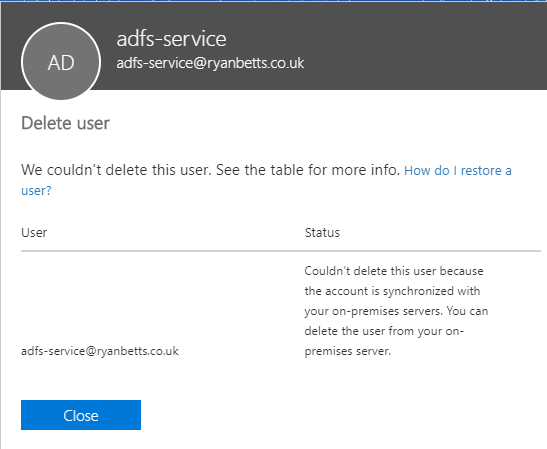
If you have Azure AD Connect syncing users from on premise Active Directory you will be unable to delete user accounts from the Office portal. This is the expected behaviour as the point of authority is Active Directory, when AD Connect is in place. 

You will be faced with the following error if you try "Couldn't delete this user because the account is synchronised with your on-premises servers. You can delete the user from your on-premises server." this is fine to resolve if your domain is up and operational, you simply delete the account from AD and force a sync with AD Connect. 


In this scenario this was my lab and the Active Directory that was destroyed ages ago when an SSD failed in my lab server. 

It is possible to break the relationship to Active Directory if AD Connect is offline and the domain is unrecoverable. It starts by connecting to Office 365 using Powershell.

You can download the Azure AD Powershell module using the following command

 Install-Module -Name AzureRM -AllowClobber 

You can then connect to Office 365 using the following command

 Connect-MsolService  

When you are connected to your tenant issue the following command to disable directory sync

Set-MsolDirSyncEnabled -EnableDirSync $false 

Once this command has run, it takes a while to propagate through Azure AD.

Once it was done you should be able to manually delete objects from the Office portal.

You need to enable directory sync again if you plan to provision a new domain and install AD Connect.

Set-MsolDirSyncEnabled -EnableDirSync $true 

I managed to delete all the orphaned user accounts with the exception of one, the AD sync account. It failed with "We couldn't delete this account: Sync_rbVM. This is your directory synchronisation account and you'll have synchronisation failures if it's deleted."

After leaving the portal for a bit and trying again I managed to remove this account.