Showing posts with label Exchange Migration. Show all posts

Saturday, 13 September 2014

Microsoft Exchange PST Capture Tool to aid an Exchange Migration

When I heard of the Microsoft PST Capture tool http://technet.microsoft.com/en-us/library/hh781036(v=exchg.141).aspx I thought how useful it would have been for a project I was doing a few years ago. Around 3 years ago I was migrating to Exchange 2010 from Exchange 2003, and the real difficulty was all of the mail data was stored locally as PST files on all of the client workstations. The migration ended up being a very long weekend of manually importing PST files into new Exchange mailboxes.

I am using a Windows 7 PC as the PST Capture Workstation, if you are using Windows 7 you must install PowerShell 3.0.


A PST Capture Agent must be installed on any devices that PST Capture is polling for rogue PST files. Luckily it is compiled into an MSI file, therefore it can be deployed using a Software Installation Group Policy Object if you do not have Configuration Manager in your environment. When installing the agent you must point to the PST Capture Workstation.

Once the installation completes launch the PST Capture Console and click on the New PST Search...

Select the Domain you want to search and browse the Organisation Units (OU) for endpoint workstations. Clients that do not have the PST Capture Agent installed will have a red icon, if the agent is detected it will be green. Click Next.

On the next pane, select which locations on the workstations you want to search for PST's, I personally left it to All (Not including network or external drives). Click Next.

Select No Schedule (Run Manually) and click Next.

PST Capture will browse through the workstations and find any PST files.

On my test PC it found a number of PST's. I selected one of them, and click on the New Import List.... and from the drop down click On Premise.

From the Destination Mailbox section, click and select the target mailbox you want the PST imported into, click Import All Now.

The PST Capture Console will be importing the PST file into the Exchange mailbox.

Sunday, 17 August 2014

Exchange 2007 to Exchange 2013 SP1: Get-MoveRequest script StatusDetail "FailedStuck" progress halted

Warning - this may not work for you if your move request is in the 90% complete region. I noticed when a move request get to between 95-99% the status changes to CleanUp which I can only imagine it means it's deleting the original mailbox from Exchange 2007. Therefore I would be careful if you are this far into a mailbox move before you try this

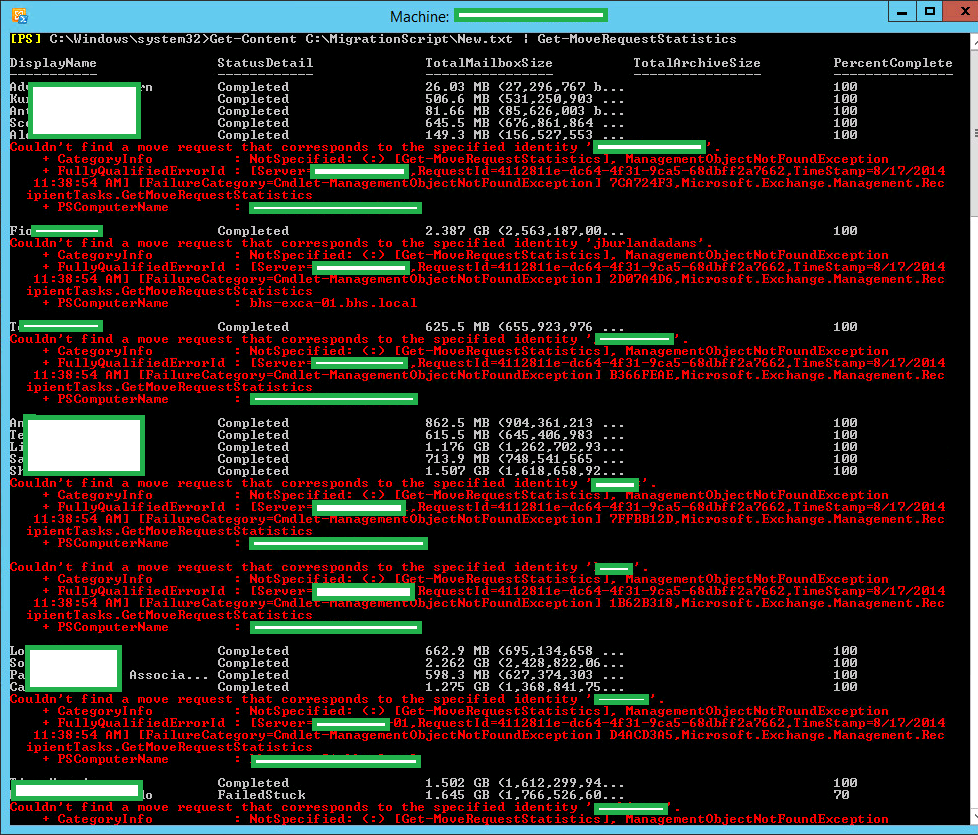
I was migrating mailboxes from Exchange 2007 to 2013, and over night the batch job ran into an issue that changed some of the mailbox statuses to FailedStuck, this was effectively stopping the migration. I used the following command to check the progress;
Get-Content C:\ListofUsers.txt | Get-MoveRequestStatistics

It was concerning to see a number of the mailboxes status was FailedStuck

I decided to cancel and then restart a move request to see if that would resolve the issue;
Remove-MoveRequest –Identity “username”


Then when I run the Get-MoveRequestStatistics command again, it could not find a move request job for that user. Therefore it had effectively cancelled the job.
Get-Content C:\ListofUsers.txt | Get-MoveRequestStatistics


I then restarted the move request manually using
New-MoveRequest –Identity “username” –TargetDatabase “db name”


Now if I run the Get-MoveRequestStatistics again, it has restarted the job and the StatusDetail has changed to CopyingMessages.

Since the testing on a single mailbox resolved the issue and got the migration going again I decided to cancel all of the FailedStuck job, I did this using the following command;
Get-Content C:\FailedUsers.txt | Remove-MoveRequest

I could off course used the -Confirm:$false switch to automate these prompts but I wanted to ensure all of the failed users started again.

Once I have run through and cancelled all of the job, I run the Get-MoveRequestStatistics again to ensure all the move request had actually been cancelled.

The next stage was to restart the move requests from scratch, I did this by copying the list of failed users text file and using the following command;
Get-Content C:\FailedUsers.txt | New-MoveRequest –TargetDatabase “db name”


Saturday, 16 August 2014

Exchange 2013 SP1: Failed to mount database "db name". Error: An Active Manager operation failed. Error: The database action failed. Error: Operation failed with Message: MapiExceptionDatabaseError

I have recently been working on an Exchange 2013 migration, so we are at the stage of migrating the mailboxes. I run a script to migrate all of the mailboxes contained in a text file. 


Get-Content C:\ListofUsers.txt | New-MoveRequest –TargetDatabase “db name” Confirm:$false

I was then using the Get-MoveRequest to check on the progress.


Get-Content C:\ListofUsers.txt | Get-MoveRequest

As the migration had been running over night I checked up on it and it had appeared to halt as not much had changed since I looked at it the night before. I opened up the ECP and headed over to Server\Databases and all of the databases were in the dismounted stage. The lesson here was that I forgot to enable Circular Logging on the databases, my colleague Terence Luk 
http://terenceluk.blogspot.com contributed with the wisdom on enabling Circular Logging on the database instances!

When I tried to use the ECP to mount the databases I got the following error;

Failed to mount database "db name". Error: An Active Manager operation failed. Error: The database action failed. Error: Operation failed with Message: MapiExceptionDatabaseError: Unable to mount database.


I then used the following command to test the status of the DAG replication;


Test-ReplicationHealth | fl check,error


The error was Error: There is not enough space on the disk. I then opened up Explorer on one of the Mailbox servers and the entire Transaction Log partition had been consumed within 3 days. It was set to 20 GB's. As the entire Exchange infrastructure was virtual running on VMware vSphere 5.1 I simply extended the VMDK used by Windows to store the Transaction Logs. I also rebooted both of the MBX server, to refresh and effectively reset all of the Exchange services.


I then tried to mount the databases again from the ECP, and they mounted successfully this time. You could off course do this using the Mount-Database command from the Exchange Management Shell also.